4EXT Recovery Control apk Description
Refund policy: 2 weeks.
I must still dedicate all time into finishing the next generation of 4EXT Recovery, which is needed to support any new devices and features.
Please have a look at http://tinyurl.com/9da62jq for status updates.
Thank you very much for your patience!
Currently supported:
HTC Sensation / XE, Incredible S / 2, Desire Z / G2, Desire S, Desire, Desire HD, Inspire 4G, myTouch 4G, Nexus One, Thunderbolt, Evo 3D GSM / CDMA, Amaze
About requests to add new devices:
As a single developer I must concentrate on one task at a time:
Feature requests for Recovery Control or 4EXT Recovery, or on adding new devices, while providing personal support to my users.
That's why it takes a longer time until I'm able to add new devices.
By buying this app, you not only get a feature rich application that lets you control, configure and handle the advanced features of 4EXT Recovery with comfort, you also contribute to the future of the recovery itself!
Thanks to the great community the project will continually improve and stay as active as possible!
Translations: it's a community project at crowdin.net. Big thanks to everyone participating!
Permissions:
- Start on boot:
*) deactivated by default
*) Needed to setup schedules in Android.
(!no background process!)
- Vibrate:
*) haptic feedback settings for recovery
- ACCESS_NETWORK_STATE:
*) to not try to connect if you are offline
- WAKE_LOCK:
*) to stay awake while you are downloading.
-INTERNET
Updates, recovery downloads
Please see www.4ext.net for a complete feature list and the recent changelog.
Examples:
*) Restore: Let the App do the md5sum check INSTEAD of recovery!
-> To make sure the backup will restore before you even reboot into recovery! This also gives you the opportunity to fix md5sums in case you really need that backup badly.
-> this prevents situations where you might be left with a non-bootable device.
*) Start Backups, Advanced Backups, Restore, Advanced Restore directly from inside the app
*) Check your backups' health to ensure they will restore later when you need them.
*) Convert backups between EXT3 and EXT4
*) Calculates real values for the space needed to create a new full or advanced backup
-> for "Advanced Backups": While you are selecting / deselecting partitions, it will display and update the currently needed space to complete that custom backup set.
*) Install multiple zip files at once ->
*) Optionally display the md5sums of all the files you are going to flash in one go!
-> So you can make sure all are ok before you flash them.
*) Prefer to stay inside recovery after all your selected operations are done? No problem.
*) Individualize your recovery: install, uninstall 4EXT Themes without the need to reboot.
*) Had a bad Recovery session and didn't have the time to save the log file? No problem, let the app save it to your sdcard!
*) Encountered a problem? Use the report issue button to tell me about your problem and optionally attach valuable info such as your last recovery log to help me help you much better.
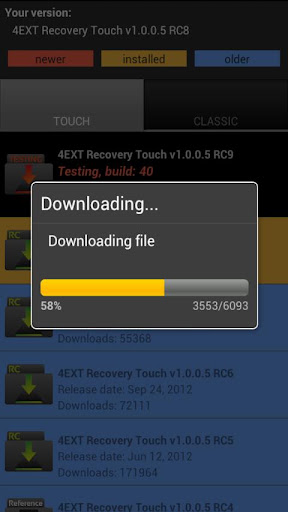
*) Safely online install or upgrade 4EXT Recovery (md5sums are automatically verified)
*) View all changelogs or known issues of any version available to your device.
*) Stay informed about any newly discovered bugs
*) The following example would be possible to do in just one session (one reboot in to recovery):
-> Restore a backup
-> Create a backup or advanced backup before the restore process starts
-> Format all you partitions in a file system of your choice before the restore process starts
-> Flash as many zip files you want after the restore is complete
-> Fix permissions afterwards if you like
-> Select to stay inside recovery or reboot automatically once all actions are complete
*) .. and much more! Please see www.4ext.net
4EXT Recovery Control apk Videos and Images